> ## Documentation Index
> Fetch the complete documentation index at: https://docs.get-clara.tech/llms.txt
> Use this file to discover all available pages before exploring further.
# 发送到期任务的电子邮件提醒
> 自动通知团队成员他们即将到期或已逾期的任务。
export const VimeoEmbed = ({videoId, title = 'Video'}) =>
;
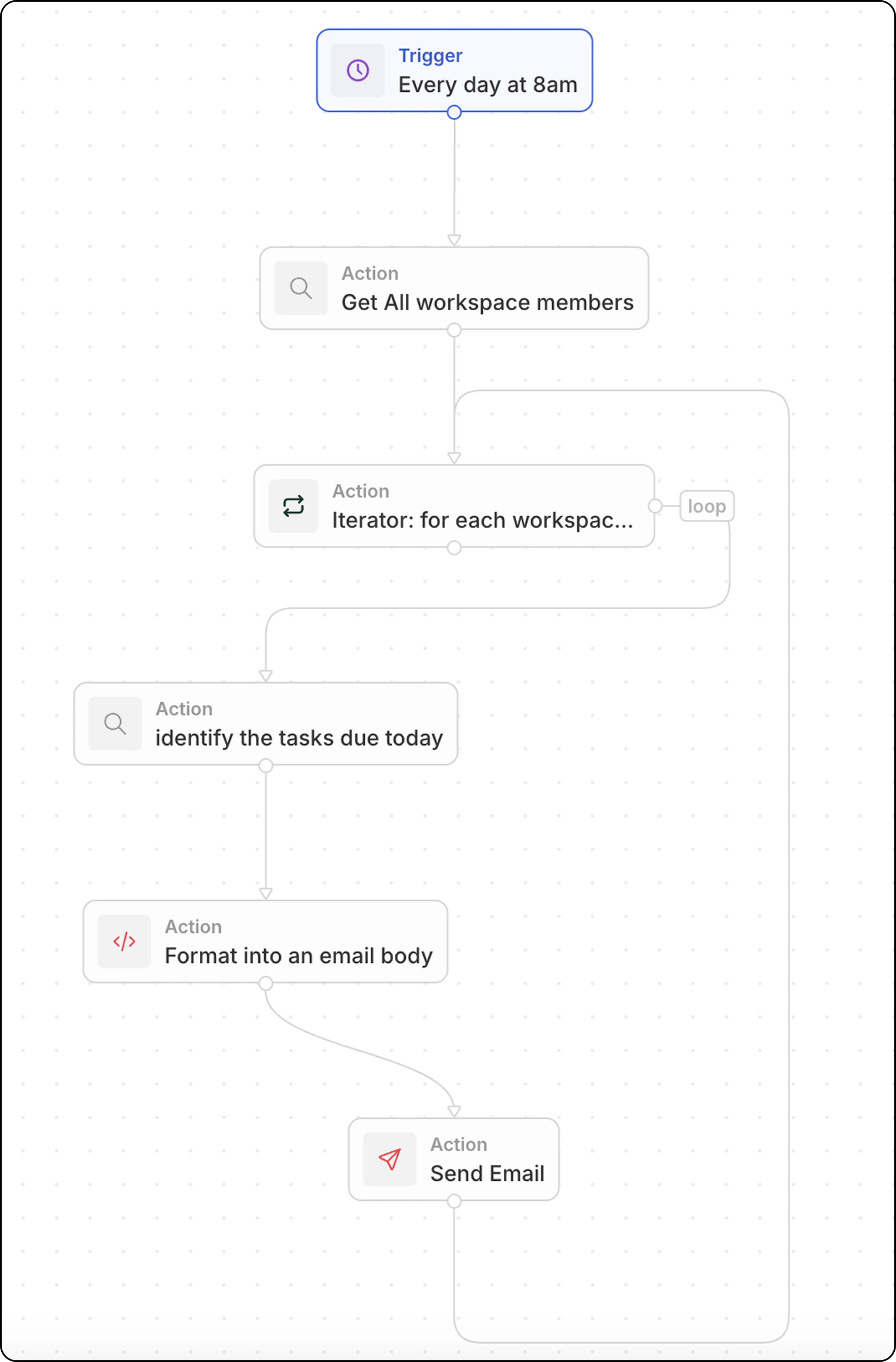 每天向每位团队成员发送电子邮件提醒,告知他们今天到期的任务。
## 概览
此工作流按计划运行,并:
1. 获取所有工作区成员
2. 遍历每位成员
3. 查找他们今天到期的任务
4. 格式化并发送个性化电子邮件
## 分步设置
### 步骤 1:配置触发器
1. 转到 **Settings → Workflows** 并创建一个新工作流
2. 选择 **On a Schedule** 作为触发器
3. 使用如下 cron 表达式以在每天上午 8:00 运行:`0 8 * * *`
### 步骤 2:搜索所有工作区成员
1. 添加 **搜索记录** 操作
2. 选择 **Workspace Members**(位于高级对象下)
3. 无需添加过滤器 — 这将返回所有成员
### 步骤 3:添加迭代器
1. 添加 **Iterator** 操作
2. 将输入数组设置为上一步的工作区成员
3. 迭代器中的所有操作将针对每位成员运行一次
### 步骤 4:搜索今天到期的任务(在迭代器内)
1. 在迭代器内,添加一个 **搜索记录** 操作
2. 选择 **Tasks** 作为对象
3. 添加过滤器:
* **Assignee** = 当前工作区成员(来自迭代器)
* **Due Date** = 今天
### 步骤 5:将任务格式化为电子邮件正文(在迭代器内)
添加一个 **Code** 操作,将任务格式化为带有链接的可读列表:
```javascript theme={null}
export const main = async (params: {
tasksDue?: Array<{ id: string; title: string }> | null | string;
}) => {
const tasksDue =
typeof params.tasksDue === "string"
? JSON.parse(params.tasksDue)
: params.tasksDue;
if (!Array.isArray(tasksDue) || tasksDue.length === 0) {
return {
formattedTasks: "No tasks due today."
};
}
const formattedTasks = tasksDue
.map(
t =>
`${t.title}\nhttps://yourSubDomain.twenty.com/object/task/${t.id}`
)
.join("\n\n");
return { formattedTasks };
};
```
将 `yourSubDomain` 替换为你实际的 Twenty 工作区子域名。
### 步骤 6:发送电子邮件(在迭代器内)
1. 添加一个 **Send Email** 操作(仍在迭代器内)
2. 配置:
| 字段 | 值 |
| ------- | ------------------------------------------------ |
| **收件人** | `{{iterator.currentItem.userEmail}}`(工作区成员的电子邮件) |
| **主题** | 您今天到期的任务 |
| **正文** | `{{code.formattedTasks}}` |
### 步骤 7:测试并启用
1. 点击 **Test** 以手动运行工作流
2. 检查收件箱中的电子邮件
3. 激活工作流
## 相关内容
* [工作流操作](/l/zh/user-guide/workflows/capabilities/workflow-actions)
* [从工作流发送电子邮件](/l/zh/user-guide/workflows/capabilities/send-emails-from-workflows)
* [在 Code 操作中处理数组](/l/zh/user-guide/workflows/how-tos/advanced-configurations/handle-arrays-in-code-actions)
每天向每位团队成员发送电子邮件提醒,告知他们今天到期的任务。
## 概览
此工作流按计划运行,并:
1. 获取所有工作区成员
2. 遍历每位成员
3. 查找他们今天到期的任务
4. 格式化并发送个性化电子邮件
## 分步设置
### 步骤 1:配置触发器
1. 转到 **Settings → Workflows** 并创建一个新工作流
2. 选择 **On a Schedule** 作为触发器
3. 使用如下 cron 表达式以在每天上午 8:00 运行:`0 8 * * *`
### 步骤 2:搜索所有工作区成员
1. 添加 **搜索记录** 操作
2. 选择 **Workspace Members**(位于高级对象下)
3. 无需添加过滤器 — 这将返回所有成员
### 步骤 3:添加迭代器
1. 添加 **Iterator** 操作
2. 将输入数组设置为上一步的工作区成员
3. 迭代器中的所有操作将针对每位成员运行一次
### 步骤 4:搜索今天到期的任务(在迭代器内)
1. 在迭代器内,添加一个 **搜索记录** 操作
2. 选择 **Tasks** 作为对象
3. 添加过滤器:
* **Assignee** = 当前工作区成员(来自迭代器)
* **Due Date** = 今天
### 步骤 5:将任务格式化为电子邮件正文(在迭代器内)
添加一个 **Code** 操作,将任务格式化为带有链接的可读列表:
```javascript theme={null}
export const main = async (params: {
tasksDue?: Array<{ id: string; title: string }> | null | string;
}) => {
const tasksDue =
typeof params.tasksDue === "string"
? JSON.parse(params.tasksDue)
: params.tasksDue;
if (!Array.isArray(tasksDue) || tasksDue.length === 0) {
return {
formattedTasks: "No tasks due today."
};
}
const formattedTasks = tasksDue
.map(
t =>
`${t.title}\nhttps://yourSubDomain.twenty.com/object/task/${t.id}`
)
.join("\n\n");
return { formattedTasks };
};
```
将 `yourSubDomain` 替换为你实际的 Twenty 工作区子域名。
### 步骤 6:发送电子邮件(在迭代器内)
1. 添加一个 **Send Email** 操作(仍在迭代器内)
2. 配置:
| 字段 | 值 |
| ------- | ------------------------------------------------ |
| **收件人** | `{{iterator.currentItem.userEmail}}`(工作区成员的电子邮件) |
| **主题** | 您今天到期的任务 |
| **正文** | `{{code.formattedTasks}}` |
### 步骤 7:测试并启用
1. 点击 **Test** 以手动运行工作流
2. 检查收件箱中的电子邮件
3. 激活工作流
## 相关内容
* [工作流操作](/l/zh/user-guide/workflows/capabilities/workflow-actions)
* [从工作流发送电子邮件](/l/zh/user-guide/workflows/capabilities/send-emails-from-workflows)
* [在 Code 操作中处理数组](/l/zh/user-guide/workflows/how-tos/advanced-configurations/handle-arrays-in-code-actions)