
How email threading works
Every email carries a hiddenMessage-ID header — a unique fingerprint assigned by the sender’s mail server. When you reply to an email, your mail client sets an In-Reply-To header referencing that fingerprint. That’s how Gmail, Outlook, and every other client groups messages into threads.
In Clara, that fingerprint is stored as headerMessageId on the Message object. Your workflow grabs it and passes it into the Send Email action’s In-Reply-To field.
Building the workflow
Step 1: Create a new workflow
Head to Settings -> Workflows and click + New Workflow.Step 2: Trigger on incoming messages
Pick When a Record is Created and choose Messages. Every time an email lands in Clara, this fires.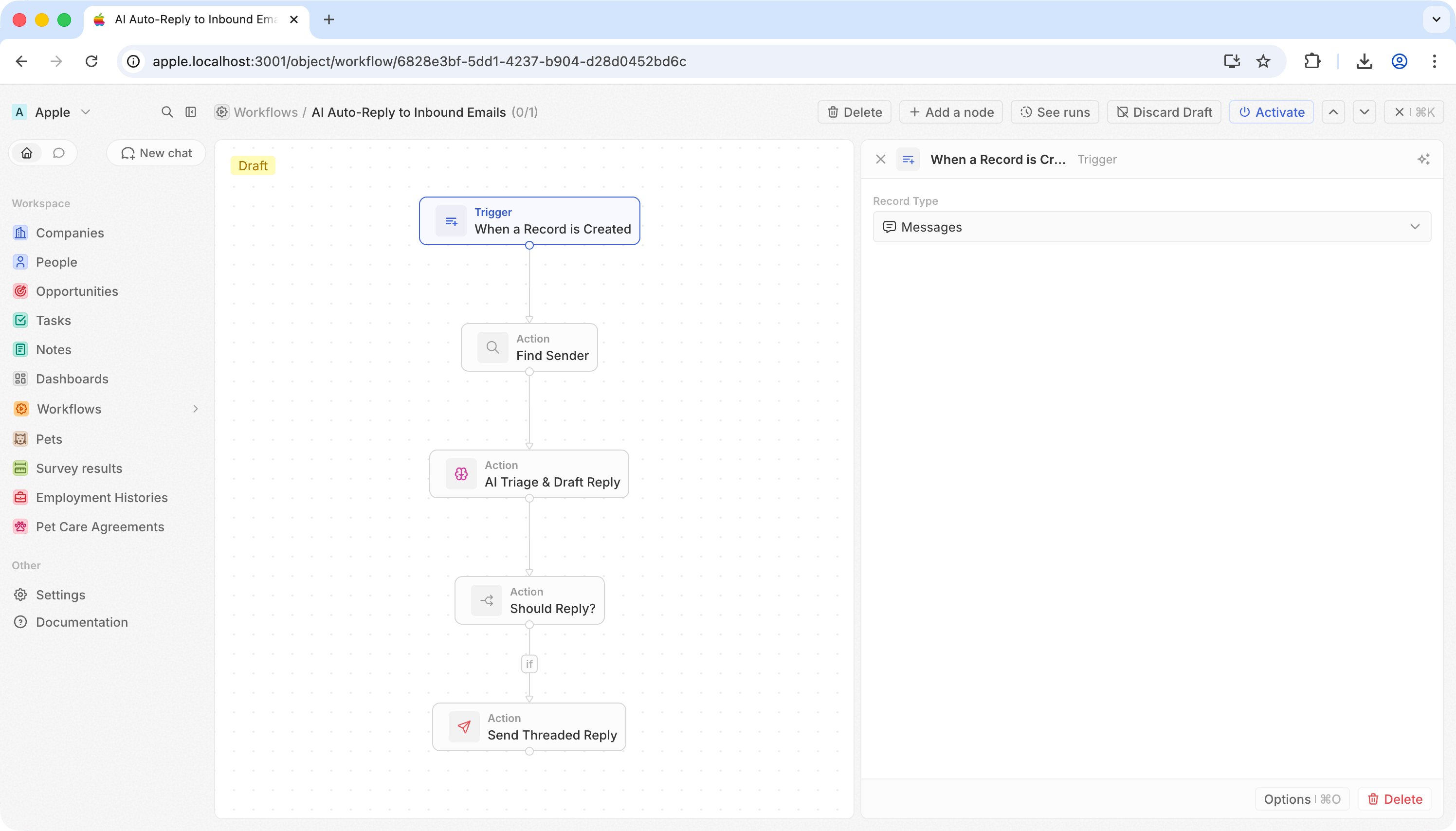
Step 3: Look up who sent it
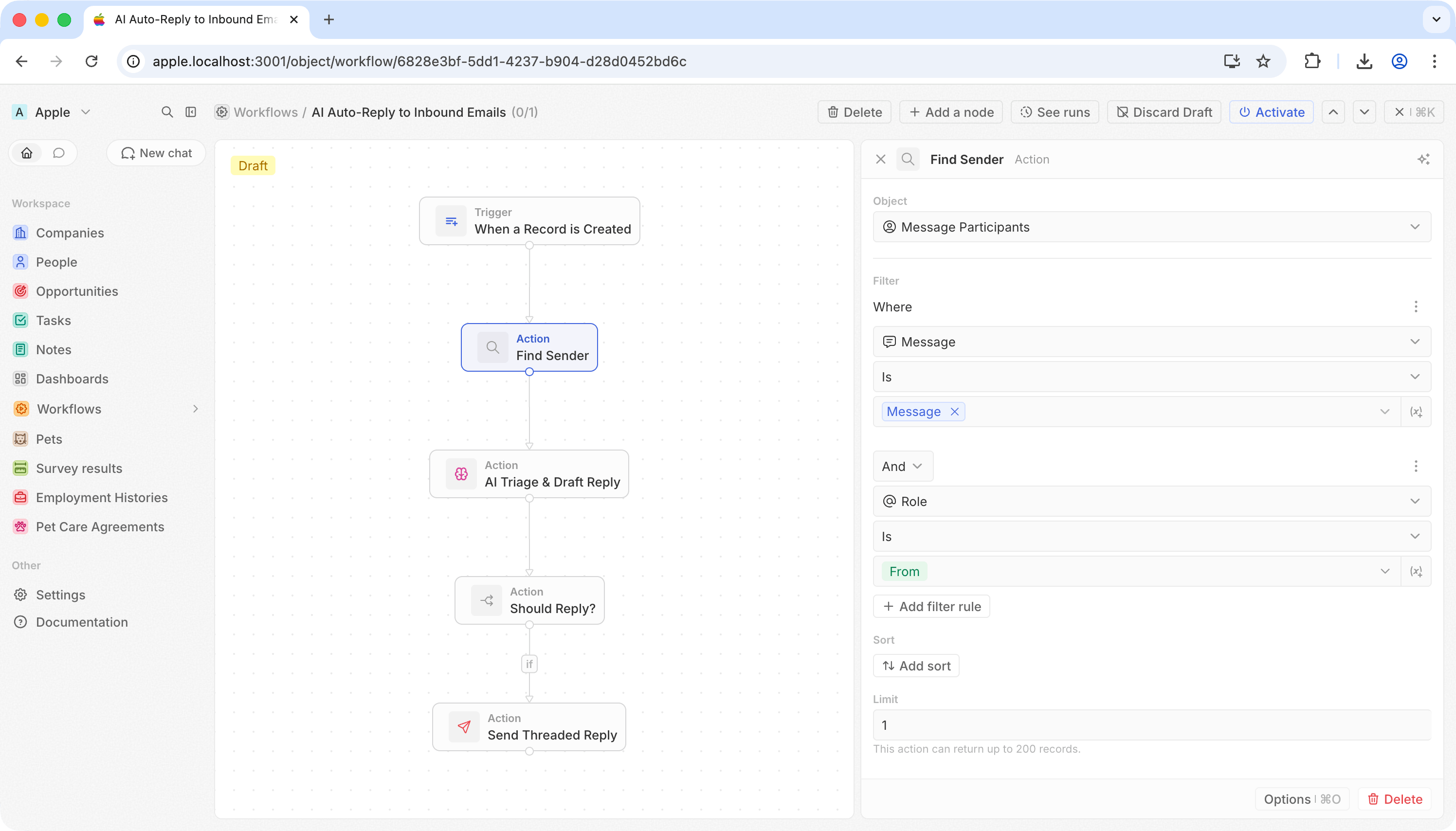
Add a Search Records action. The sender’s address isn’t on the message itself — it’s on the related Message Participant record.
This gives you the sender’s email in
handle and their name in displayName.
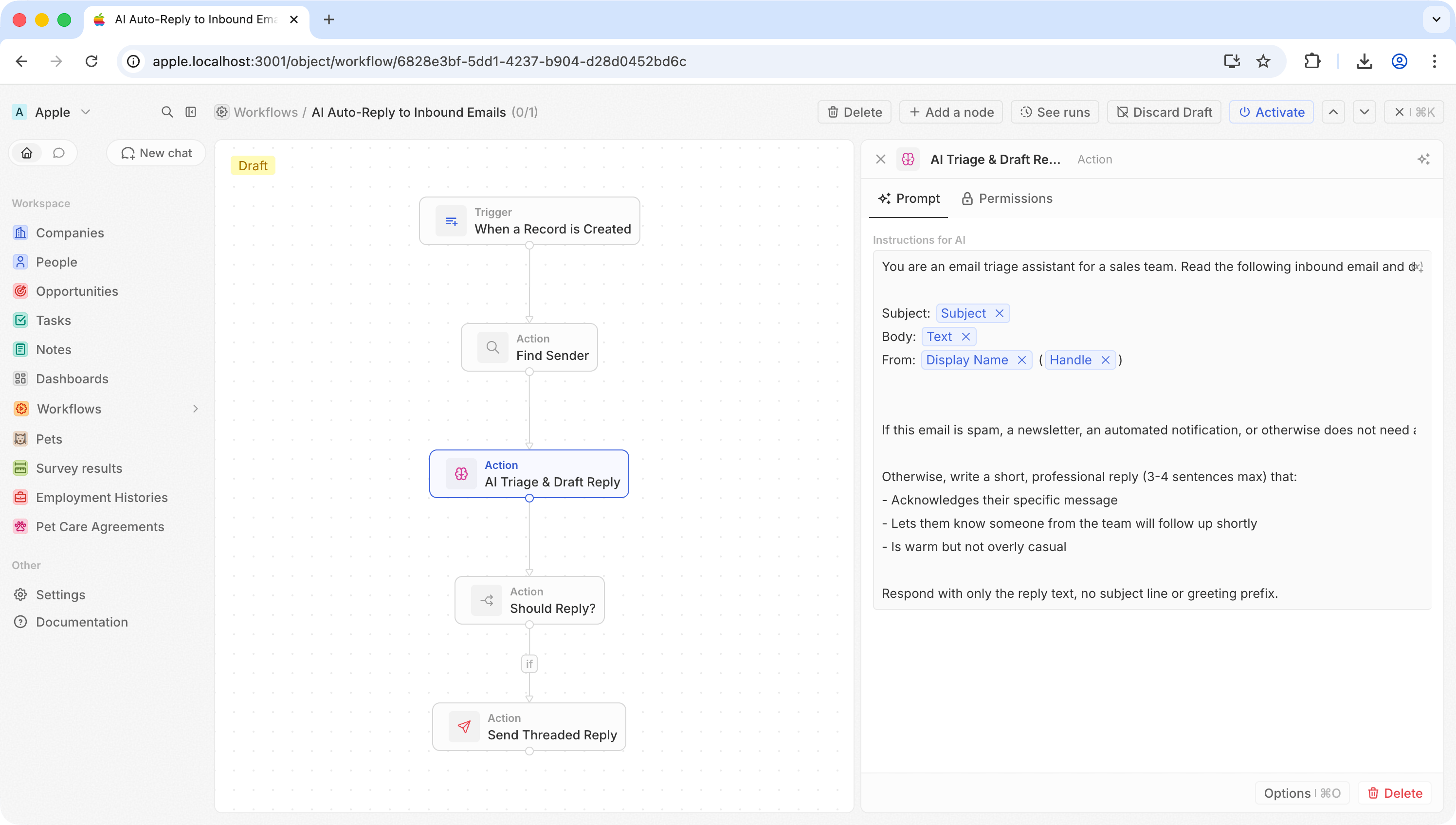
Step 4: AI triage and draft reply
Add an AI Agent action. This single step does two things: decides whether the email deserves a reply, and if so, writes one. Use a prompt like:response field that the next steps can reference.
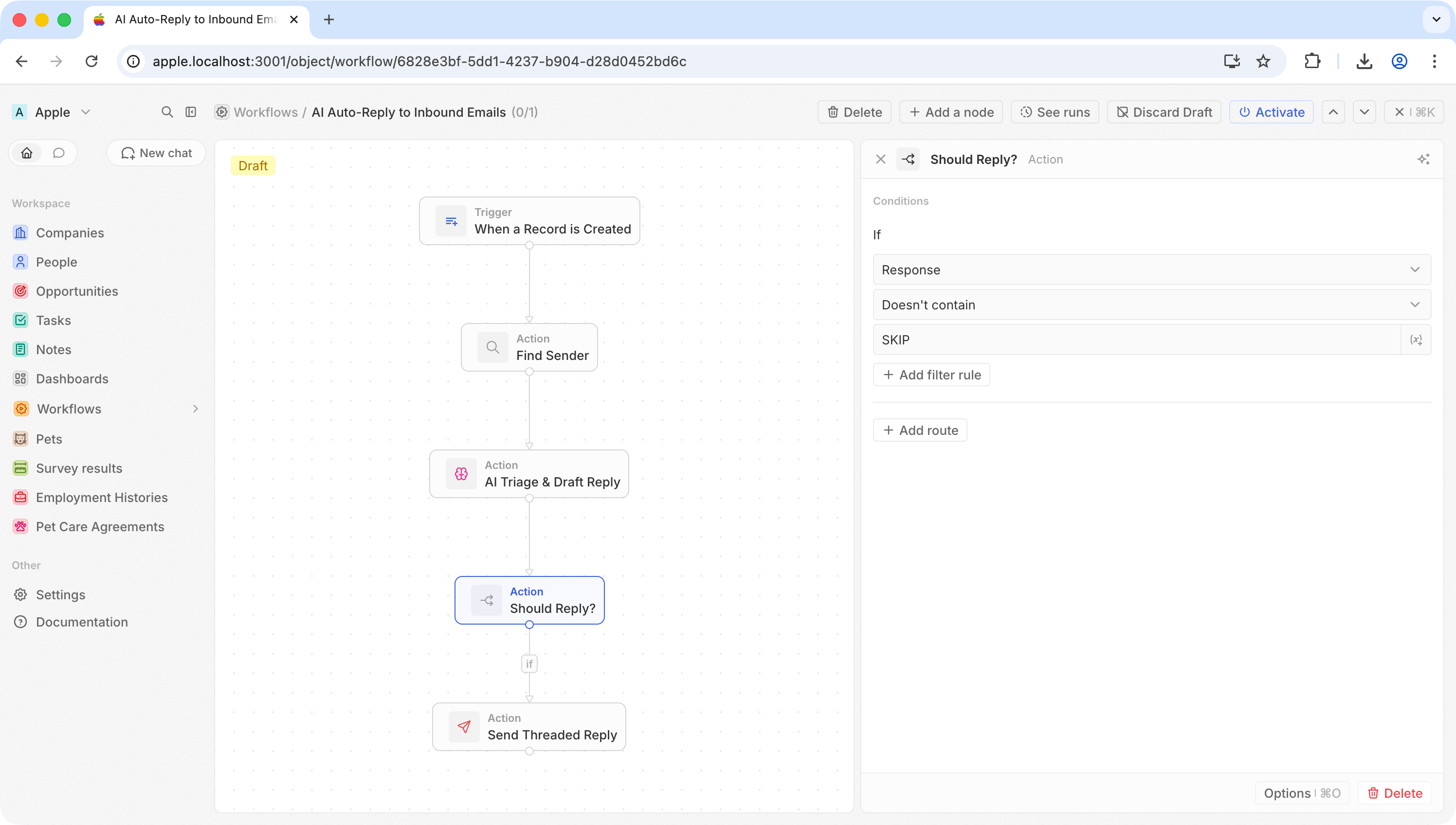
Step 5: Branch on the AI decision
Add an If/Else action to check whether the AI decided to reply or skip.
Spam, newsletters, and auto-generated messages get dropped. Everything else moves to the next step.
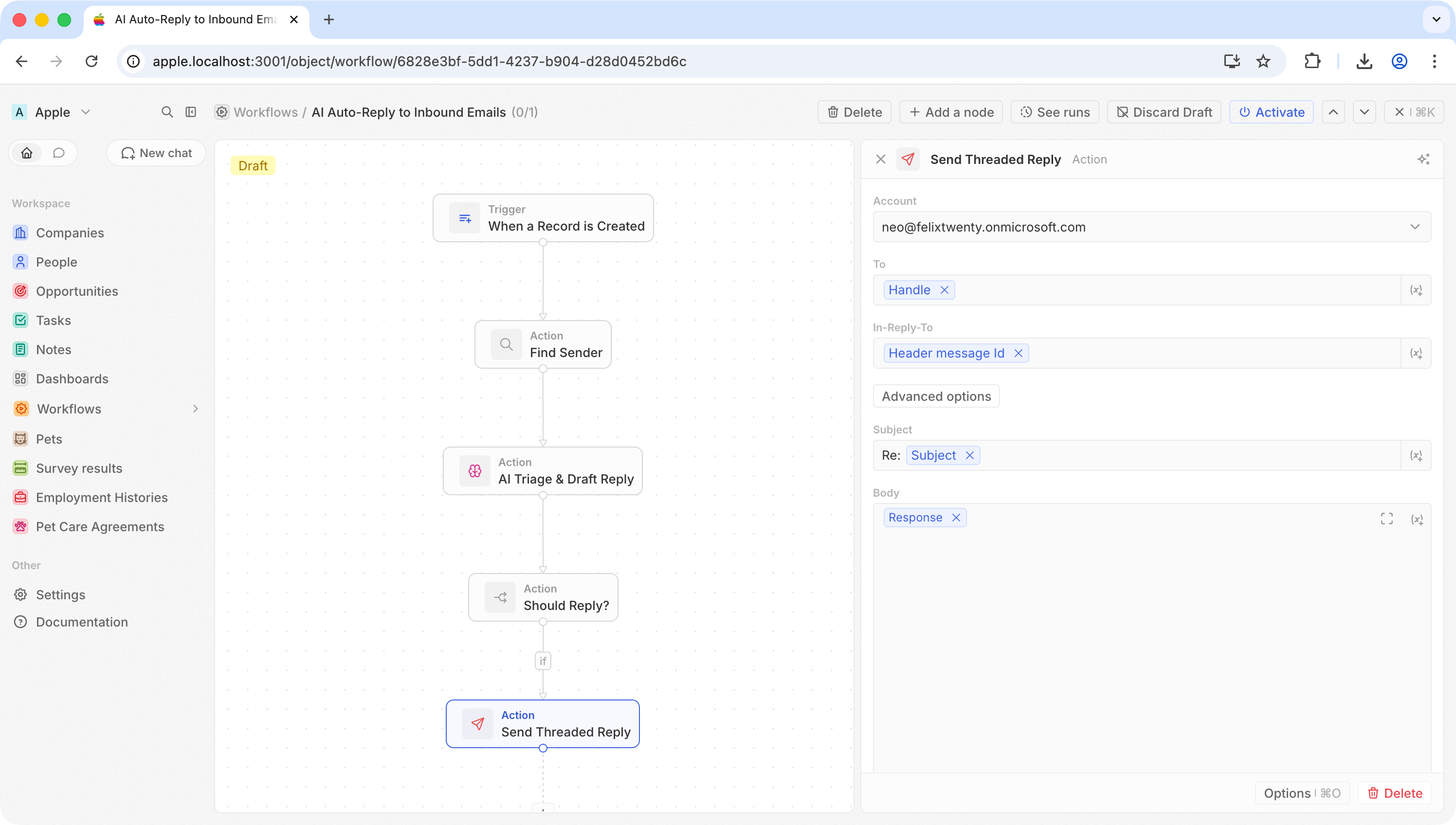
Step 6: Send a threaded reply
Add a Send Email action on the “if true” branch. Click Advanced options, then Add In-Reply-To.
The In-Reply-To field is what makes this a reply instead of a new conversation. The recipient sees it threaded under the original email in Gmail, Outlook, or any other client.
Step 7: Test and activate
Hit Test, then check your email client. The reply should appear nested under the original message. Activate when you’re happy with it.Ideas to build on
- Only reply to VIPs — add a branch that checks the sender’s domain or whether they exist as a Contact in Clara
- Route by intent — use separate AI Agent prompts to handle sales inquiries differently from support requests
- Enrich before replying — add a Search Records step to pull the sender’s company or deal history into the AI prompt for more personalized replies