
Tagging teammates directly in notes is not yet supported. This feature is planned for the second half of 2026. In the meantime, this workflow provides a practical workaround.
The Challenge
You want to tag a colleague in a note so they receive a notification to review it. Today, Clara doesn’t support @mentions in notes or tasks.The Workaround
Instead of tagging in the note text, you can:- Create a Reviewer relation field on the Notes object
- Assign the reviewer when creating or editing the note
- A workflow automatically sends an email to the reviewer with a link to the note
Step-by-Step Setup
Step 1: Create the Reviewer Field
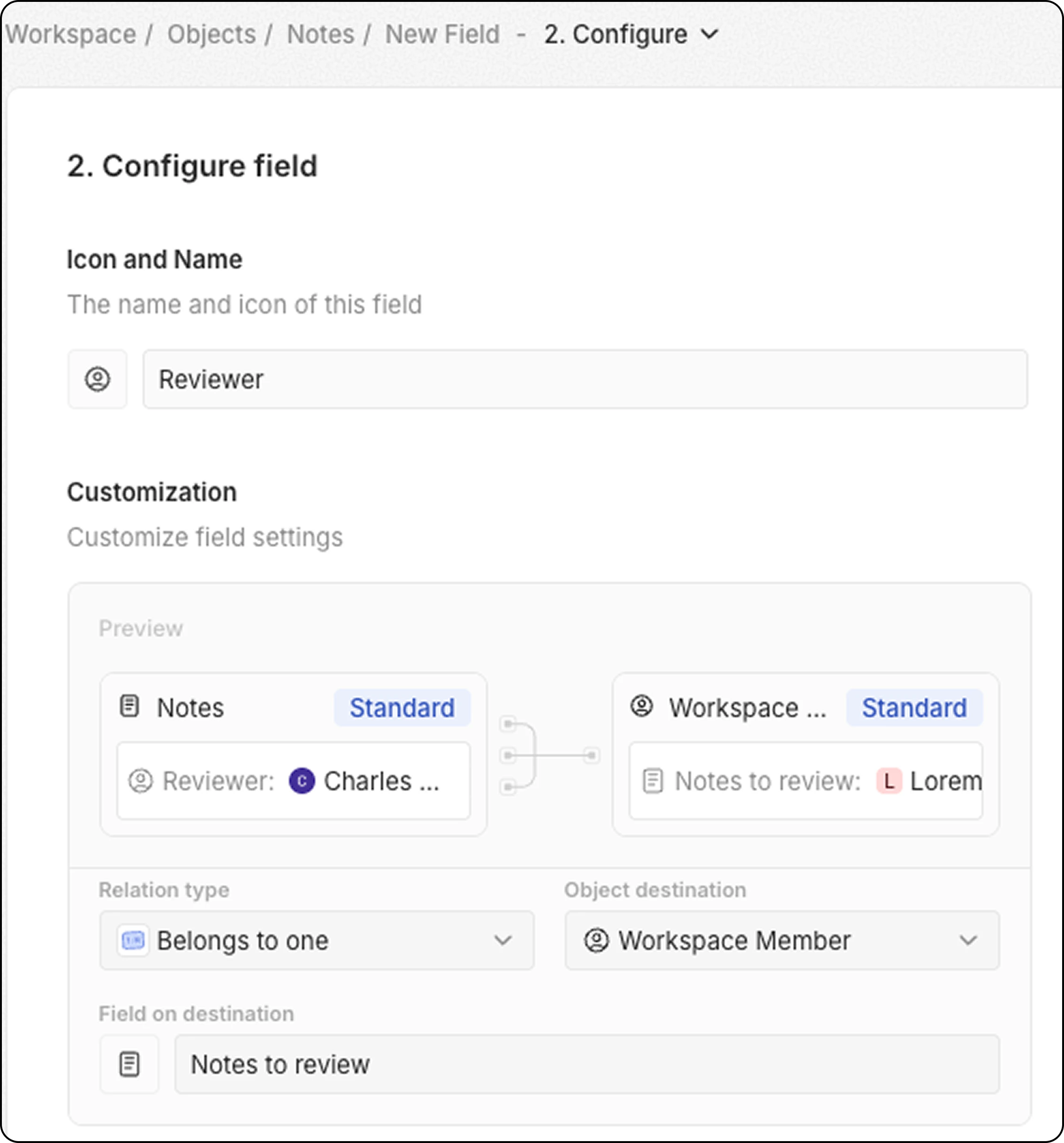
- Go to Settings → Data Model → Notes
- Click Add Field
- Configure:
- Save the field
Step 2: Create the Workflow
Create the Workflow Trigger
- Go to the main view and create a new workflow
- Select Record Updated as the trigger
- Choose Note as the object and specify the Reviewer field.
- This will trigger whenever the reviewer of a note is updated.
Add a Filter to Check Reviewer Was Just Assigned
Add a Filter action to ensure the workflow only continues when a reviewer is assigned:Search for the Workspace Member
- Add a Search Records action
- Select Workspace Member (under Advanced Objects)
- Add a filter:
This retrieves the full workspace member record, including their email address and name.
Send the Notification Email
- Add a Send Email action
- Configure:
Email body example:
Replace
your-workspace-url with your actual Clara workspace URL.Test and Activate
- Click Test to run the workflow manually
- Create or edit a note and assign a reviewer
- Check the reviewer’s inbox for the notification email
- Activate the workflow
Usage
Once set up, your team can use this workflow by:- Creating a new note (or editing an existing one)
- Selecting a colleague in the Reviewer field
- The colleague automatically receives an email with a direct link to the note